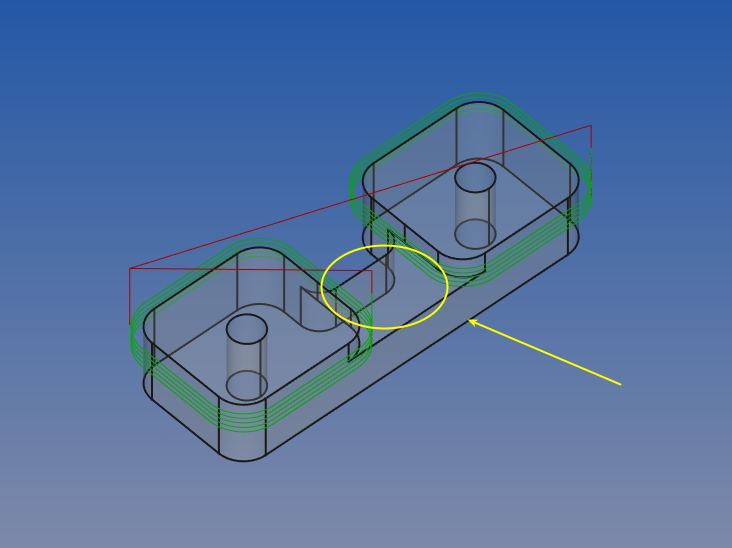
how can I nicely mill the area between the two bulges in the image below?
The “mill pocket” tool is restricted to the surface, so the borders are not well machined… even by using the “Extensions” the result is a mess.
Any idea?
P.S.
for a similar problem I ended up with creating a fake solid object with a pocket placed exactly in the right place and having the right shapes. Then I manually copied g-code into the main one.
But… gees… that was a real PITA! strip-holder-1.0.FCStd (96.7 KB)
That’s a challenging face to mill.
You could try using a slot operation down the centerline to open it up. That along with your profiles and a final profile of the whole shape should get everything.
Found!
By selecting an edge and then by making a perpendicular slot.
But… then? How I move further from this? My milling bit has just a diameter of 1.5 mm. So it cannot be used to machine the space between the two bulges in one pass.
Afternoon Sir,
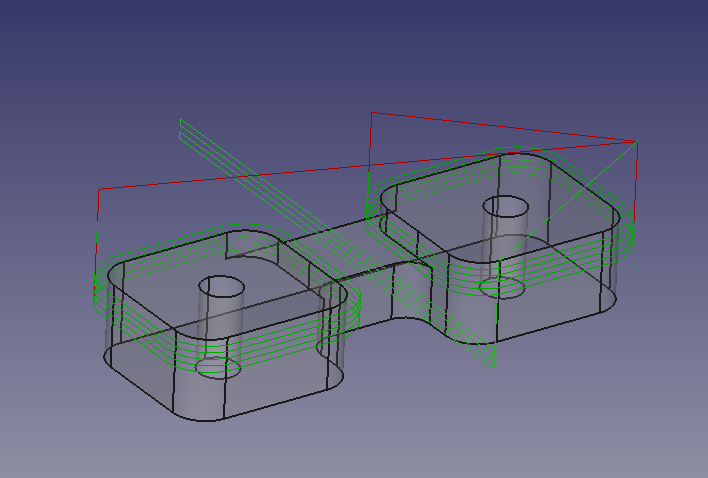
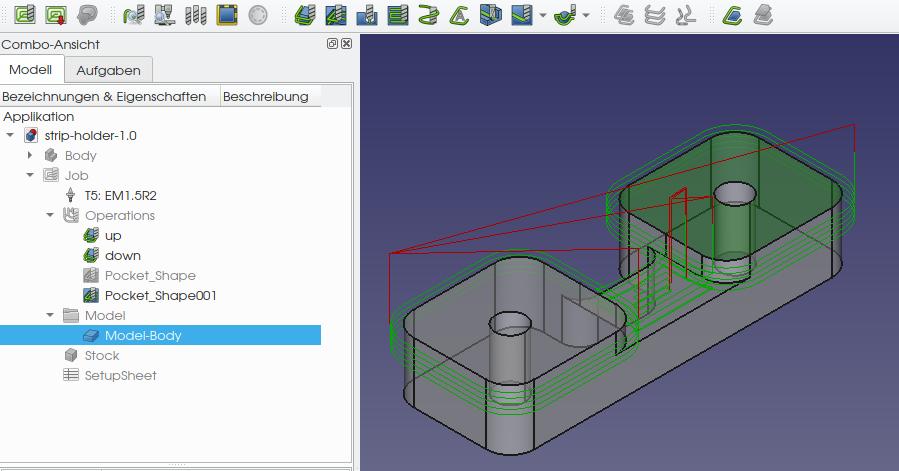
As @Herbk suggests, you can use the Pocket op alone, or I did a scenario with a combination Pocket and Slot operations in the attached file and images.
Russell
OS: Windows 10 (10.0)
Word size of OS: 64-bit
Word size of FreeCAD: 64-bit
Version: 0.19.22808 (Git)
Build type: Release
Branch: master
Hash: 72eb41b24f12b572d55081042160954b93f4614c
Python version: 3.6.8
Qt version: 5.12.1
Coin version: 4.0.0a
OCC version: 7.3.0
Locale: English/United States (en_US) strip-holder-1.0a.FCStd (130 KB)
Anyway, I solved by setting the opportune “extensions” in the pocket-operation.
Yeah, there is still a lot of time lost in travelling, but is the thing more close to what I was looking for:
Here below, the “Extension” of 2 mm applied only to strategic edges (violet color):